
TP-Link Deco
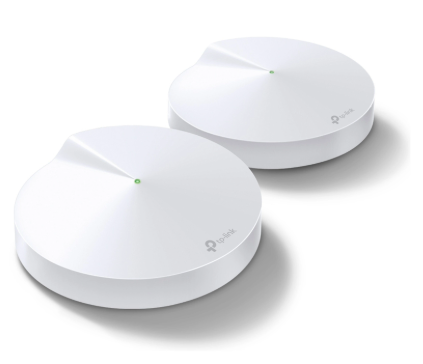
Set up your TP-Link Deco M5 using the TP-Link Deco app. Initial setup uses the app rather than a web browser; screens may vary by Deco model and app version.
Step 1: Install the Deco app
1.1 Get TP-Link Deco
Install the TP-Link Deco app from the Apple App Store or Google Play.

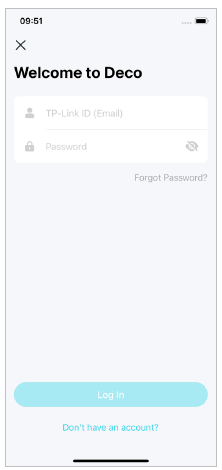
1.2 Log in or create a TP-Link ID
Open the app and sign in with your TP-Link ID, or create an account by following the app prompts.
Step 2: Connect your main Deco
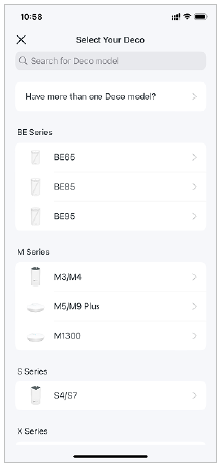
2.1 Choose your model
Start setup and select Deco M5, or the exact model printed on your Deco.
2.2 Connect the ONT and power
Use an Ethernet cable to connect the active ONT port specified by WorldNet to an Ethernet port on the main Deco M5. The ONT port number varies by connection. Connect the Deco power adapter and switch it on.
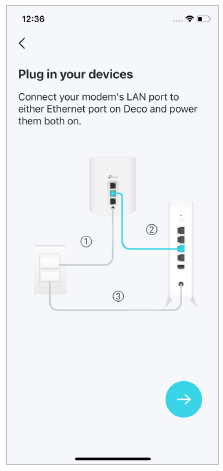
Note: The app illustration may show a generic modem. For WorldNet fibre, connect to your ONT. Do not assume its active port is always LAN 1.
2.3 Wait for the setup light
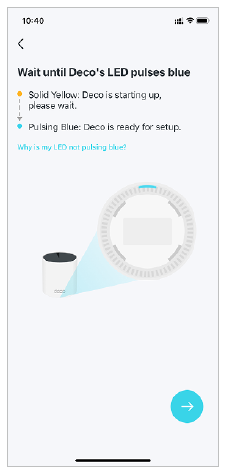
Wait for the Deco LED to pulse blue, then follow the app to find the Deco. Allow the device-discovery permissions needed by your phone if prompted.
2.4 Choose the Deco location
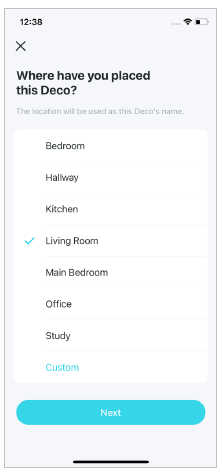
Select the room where the main Deco is located, or enter a location name.
Step 3: Set up the internet and Wi-Fi
WorldNet Internet Settings
Internet Connection Type
Dynamic IP / DHCP / Automatic IP / IPoE
VLAN
Disabled / Off
Choose the matching option shown by your router.
3.1 Choose Dynamic IP
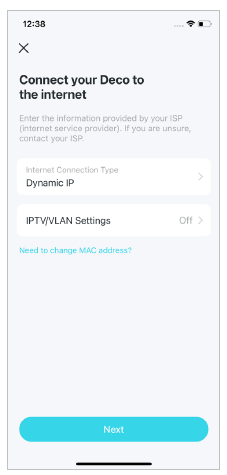
Set Internet Connection Type to Dynamic IP. Keep IPTV/VLAN Settings Off, then select Next.
3.2 Create your Wi-Fi network
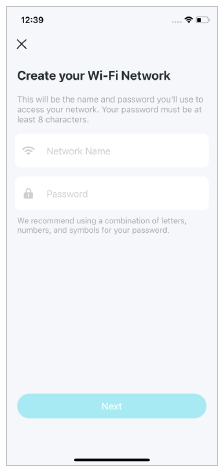
Enter a Wi-Fi network name and a strong password, then select Next.
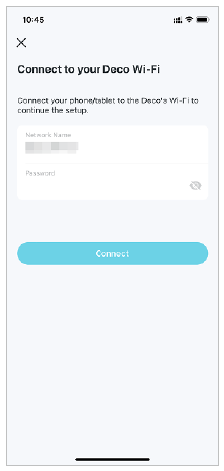
3.3 Connect to your new Wi-Fi
Connect your phone to the new Deco Wi-Fi network using the password you just created. Return to the app and complete the remaining prompts. You can add other Deco units by following the app’s add-device instructions.
Step 4: Test your internet connection
Connect your device to the router by Ethernet or Wi-Fi, then open a website to check that the internet works.
Note: If you test on a phone, temporarily turn off mobile data so you can confirm the connection is coming through Wi-Fi rather than 4G/5G.